BIM training
Revit for architecture, structure and MEP, Dynamo, Python and ISO 19650 coordination. In Phnom Penh or in-house, in Khmer and English.
A Khmer version of this website is not available yet. The pages are in English while the Khmer text is prepared and reviewed. Our courses are taught in Khmer and English, and you are welcome to write your enquiry in Khmer.
Hands-on training in Revit, Dynamo automation and ISO 19650 workflows, taught by working BIM practitioners, and the iBIM CDE for the projects those teams deliver.
Revit for architecture, structure and MEP, Dynamo, Python and ISO 19650 coordination. In Phnom Penh or in-house, in Khmer and English.
 iBIM CDE
One common data environment for document approval, model coordination and asset maintenance, organised the ISO 19650 way.
We train the way BIM actually gets delivered on site — coordinated across architecture, structure, and MEP, not taught in isolation.
Separate ARC, STR, and MEP tracks build real modeling fluency before we ever talk about coordination.
Trainees leave able to script the repetitive parts of their own workflow, not just click through a demo.
Clash detection, information management, and CDE workflows taught against the standard, not around it.
Mechanical, electrical, and plumbing systems modeling with an emphasis on clash-ready coordination models.
In-house BIM training delivered directly to engineering, MEP and construction companies in Cambodia.
We are in Phnom Penh, Cambodia. Message us on Telegram, call, or follow our training on social media.
Open in Google Maps (opens in a new tab)Map by Google Maps.
Cohorts run in Phnom Penh, in Khmer and English, on-site or in-house for your firm.
Every course maps to real production work — not software tours. Filter by track below.
Mechanical, electrical, and plumbing systems modeling with an emphasis on clash-ready coordination models.
Documents, models, site issues and assets in one place, organised the ISO 19650 way: work in progress stays with its team, and shared or published information goes through checks you can trace.
Sample data. "Riverside Clinic" is a fictional project. Every name, file, number and date in these three examples is invented to show the workflow.
ISO 19650 information containers with checks you can trace, from work in progress to published and archived information.
Revit models published as versioned web models, federated and checked for clashes in the browser.
Questions and site observations captured where the work happens, on a phone or tablet.
An asset register and maintenance work orders tied to the published as-built model.
Labels were checked on 3 Oct 2026 against the live iBIM CDE build d96c53c, read from the CDE's public version address. Available: the change that delivers it is part of that live build. Preview: built and tested in the iBIM CDE code, not yet part of the live build, so not available to customers yet. Planned: not built yet. Labels are checked again before each release of this page.
| Capability | Label | Evidence | In live build | Last checked |
|---|---|---|---|---|
| Information containers through WIP, Shared, Published and Archived, with naming checks, status codes and revision history | Available | commit 51ac35b | Yes | 3 Oct 2026 |
| Transmittals issued as one recorded action, with an evidence record and PDF | Available | commit d96c53c, release backport of 698cc7c | Yes | 3 Oct 2026 |
| Submittal reviews: consultant review then owner approval, with an issued package record | Available | commit 24080ce | Yes | 3 Oct 2026 |
| Revision comparison with an impact review | Preview | commit cc9ad51 | No | 3 Oct 2026 |
| Attention list and snapshot reports | Preview | commit ffa3e50, 578fd7f | No | 3 Oct 2026 |
| Publish from Revit to versioned web models and view them in the browser | Available | commit 63c5bb2 | Yes | 3 Oct 2026 |
| Federated clash check in the browser and BCF 2.1 issues | Available | commit 517520c | Yes | 3 Oct 2026 |
| BCF 3.0 import and export | Preview | commit 8d9a587 | No | 3 Oct 2026 |
| RFIs, site and safety reports, 4D / 5D plan | Available | commit 0eeea12, 8bf3794 | Yes | 3 Oct 2026 |
| Phone and tablet layout, site photos, offline review copy | Available | commit 1ab8514 | Yes | 3 Oct 2026 |
| Conflict-safe sync of field issues between devices | Preview | commit ba2750e | No | 3 Oct 2026 |
| App Store and Play Store apps | Planned | app project prepared in mobile/, not published | - | 3 Oct 2026 |
| Asset register built from COBie; maintenance work orders tied to the published model | Available | commit f2d2fab, 1490f72 | Yes | 3 Oct 2026 |
| Live sensor view (currently fed with demonstration data) | Available | commit 1ab8514, the telemetry view is live; the readings shown today come from a demo simulator | Yes | 3 Oct 2026 |
| Rule-based condition monitoring with work-order suggestions | Preview | commit 34669cf | No | 3 Oct 2026 |
| Predictive maintenance | Planned | rule-based monitoring comes first | - | 3 Oct 2026 |
The family editor's view: connectors, reference planes and labelled dimensions are showing.
Electrical · Conduit Fittings · Boxes and supports
ID IBIM-E-COF-SUPPORT-SWITCH-SOCKET-R25 · file IBIM-E-COF-Support Switch Socket-R25.rfa
6 checks passed, 2 warnings. See what was checked
Request access How to use in Revit
Available on request. Nothing is downloaded or loaded into Revit from this page.
This family has one type: IBiM_Support.
28 parameters. Values are those saved in the library file for the selected type. An instance parameter shows its default; it is set per placed element in a project.
1 parameter of the file for authorship or contact details (author, website, e-mail and similar) is not shown.
| Parameter | Value | Units | Scope | Can be edited |
|---|---|---|---|---|
| Constraints | ||||
| Default Elevation | 0.0 | mm | Type | Yes |
| Data | ||||
| Classification.Facility.Description shared | No value | Text | Type | Yes |
| Classification.Facility.Number shared | No value | Text | Type | Yes |
| Classification.Space.Description shared | No value | Text | Type | Yes |
| Classification.Space.Number shared | No value | Text | Type | Yes |
| Classification.Uniclass.EF.Description shared | No value | Text | Type | Yes |
| Classification.Uniclass.EF.Number shared | No value | Text | Type | Yes |
| Classification.Uniclass.Pr.Description shared | Cable junction boxes | Text | Type | Yes |
| Classification.Uniclass.Pr.Number shared | Pr_80_77_28_08 | Text | Type | Yes |
| Classification.Uniclass.Ss.Description shared | No value | Text | Type | Yes |
| Classification.Uniclass.Ss.Number shared | No value | Text | Type | Yes |
| Dimensions | ||||
| B | 86.0 | mm | Instance | Yes |
| W | 86.0 | mm | Instance | Yes |
| Electrical | ||||
| Voltage Comments | No value | Text | Type | Yes |
| Wattage Comments | No value | Text | Type | Yes |
| Electrical - Circuiting | ||||
| Secondary Distribution System | No value | — | Instance | Yes |
| SubFeed Lugs | No value | Yes / No | Instance | Yes |
| Identity Data | ||||
| Assembly Code | No value | Text | Type | Yes |
| Cost | No value | currency | Type | Yes |
| Description | Use for Socket and Switch system | Text | Type | Yes |
| IBiM_Asset_EnName shared | Support 86x86 | Text | Instance | NoSet by a formula in the family |
| Keynote | No value | Text | Type | Yes |
| Manufacturer | No value | Text | Type | Yes |
| Model | No value | Text | Type | Yes |
| Type Comments | No value | Text | Type | Yes |
| Type Image | No value | Image | Type | Yes |
| IFC Parameters | ||||
| Export Type to IFC As | No value | Text | Type | Yes |
| Type IFC Predefined Type | No value | Text | Type | Yes |
The Revit category differs from the catalogue classification. The library lists this family under “Conduit Fittings”; in a Revit project it behaves as “Electrical Equipment” for schedules, tags, filters and visibility. This is reported for review. The family was not changed.
6 passed, 2 warnings, 5 not checked. Each line says what was looked at and what was found. A passed check is not a statement that the family suits a particular project or meets a standard.
Opened by Revit 2025 and saved without an error.
None found.
1 type(s), 29 parameter(s), 0 connector(s) before and after. 75 unused item(s) were purged.
IBIM-E-COF-Support Switch Socket-R25
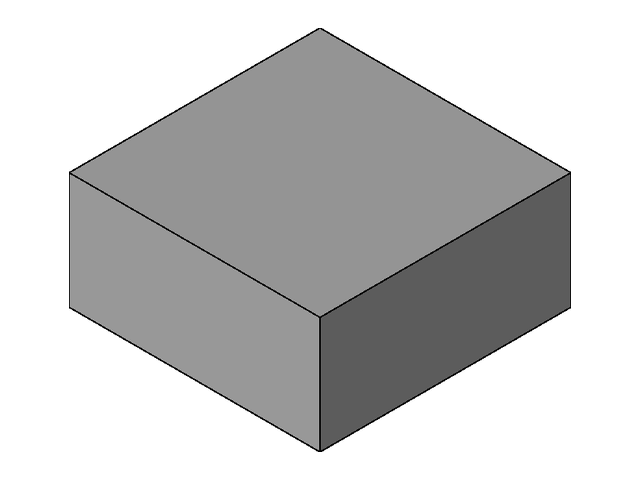
Rendered from the family's 3D view, model only.
Listed under 'Conduit Fittings', but the family's Revit category is 'Electrical Equipment'. It will schedule, tag and filter as Electrical Equipment in a project. Reported for review; the family was not changed.
No connector found: it cannot join a duct, pipe, conduit or cable-tray run.
1 named type(s).
The family was opened on its own. It was not loaded into a project, placed or connected to a system.
Whether the parameters report correctly in schedules and tags was not tested.
Dimensions and performance values were not compared with any manufacturer's or standard's data.
File weight in a full project model was not measured.
Uniclass, COBie or other classification data in the family was not reviewed.
Request access How to use in Revit
Families are saved in the Revit version shown on each page. Revit cannot open a family saved in a newer version.
iBIM Group was started in Phnom Penh to close a specific gap: Cambodia's AEC industry was adopting BIM mandates faster than its workforce could deliver on them. We teach Revit, automation, and coordination the way they're used on live projects.
Every instructor is actively producing BIM deliverables, not only teaching them.
Core instruction runs in Khmer with English technical vocabulary, matching real project teams.
Coordination and documentation workflows are taught directly against ISO 19650.
Hands-on model review with every trainee, every session — not lecture-only formats.
Leads course design and delivery at iBIM Group across Revit (ARC/STR/MEP), Dynamo and Python-based automation, BIM coordination, and ISO 19650 implementation — teaching in Khmer, English, and Vietnamese.
In-house BIM training delivered directly to engineering, MEP and construction companies in Cambodia.
No course dates are open for registration yet. Ask us about availability on the next cohort, or about in-house training for your firm.
| Program | Dates | Format | Location | Places |
|---|---|---|---|---|
| No dates are open yet. Enquire about availability | ||||
Training and the iBIM CDE are handled by different people, so each has its own form. We usually reply within one business day.
Courses, availability on a cohort, or in-house training for your team.
Enquire about trainingWe are in Phnom Penh, Cambodia. Message us on Telegram, call, or follow our training on social media.
Open in Google Maps (opens in a new tab)Map by Google Maps.
Registration for this date is closed. Ask us about the next one.
Draft. This wording and the retention period are awaiting confirmation by iBIM Group before the website is published.
This notice covers the forms on this website: training enquiries, course registrations and iBIM CDE demo requests. It does not cover the iBIM CDE itself, which has its own terms for project members.
Your name, email address and, if you give them, your phone number, organisation, role, course, team size, areas of interest, who pays and message, plus the time you sent it and the language you were viewing. For a course registration we also keep the course date, your registration status and your attendance. When you send a form we also create or update a contact record for you in iBIM Group's customer records - your name, email address and, if you gave them, your phone number and organisation - with a note of which form and reference number it came from.
To limit repeated sending, we keep a code calculated from your network address and one from your email address (a keyed hash). The codes do not contain the address itself, but the same address always gives the same code, so they can show that two requests came from the same place. We delete them after about 2 days.
To reply to your enquiry, arrange a demo or run the course you registered for, with your agreement given on the form, and to keep iBIM Group's records of its customers, learners and the quotations we send them. We do not use it for marketing lists, and sending a demo request does not create a CDE account.
When you send a form, it is saved on iBIM Group's server first; the reference number you see confirms it was saved. Emails are sent afterwards: an alert to the iBIM staff who handle that kind of request, and a confirmation to you that contains only the reference number, never your message. If an email fails, what you sent stays saved and staff can see and resend the email.
Inside iBIM Group, only staff with the access their role needs: the people who answer enquiries see enquiries of their kind (training or CDE), the training team sees course registrations and attendance, and sales staff see customer records and quotations. Each change they make is recorded. Our technical logs record that a request happened, not its content or your contact details.
The website and its database run on a computer operated by iBIM Group in Phnom Penh, Cambodia. The website's fonts are served from that computer too. These service providers also handle information to make the website work:
Enquiries and demo requests. Once we close your enquiry, we delete it 24 months after the date we closed it, together with the status of its emails (including any email still waiting to be sent) and its history of changes. An enquiry that is still open is not deleted. If we reopen it, the 24 months start again from when we close it next.
Contact records. Deleting an enquiry does not delete your contact record (including the reference number it came from). Once a year our staff review contact records that have had no enquiry, registration, quotation or other business with us for 36 months, and remove the name and contact details unless the record still belongs to a registration or quotation we keep. The review is done by people, not automatically.
Course registration details (the details you gave when registering, who pays, and the emails about it). We keep them for 24 months after the course ends. After that, our staff remove your personal details from the registration in our yearly review; the record of the course date stays without your name. This is done by people, not automatically.
Attendance and completion. We keep them for 10 years after you complete the course, so that we can confirm a certificate if you or an employer asks. After that our staff review them for removal. If your contact details are removed earlier, the attendance record stays without your name.
Quotations that were not accepted (drafts, declined, expired or replaced). We keep them for 24 months after the last decision on them. After that the owner of iBIM Group reviews them and records what is done.
Accepted quotations and the record of their acceptance. We keep them for 10 years after the work is delivered, because they are commercial and accounting records. After that the owner of iBIM Group reviews them and records what is done.
Our student directory and course Shared Drives. Our training staff keep a directory of learners built from course registrations: your name, e-mail address, course and class, the company or person who pays, the enrolment date and the payment status. Lists of learners that our staff kept in spreadsheets before this website may be added to it. To give you the course files, our staff add your Google account to the course's Google Shared Drive; to check that access, they upload the member list of that drive (e-mail addresses and access levels only, no names) and the directory compares it with the course list.
How long. The directory follows your registration and attendance records (see above). Of each Shared Drive member list we keep only the three most recent; older lists are deleted automatically when a newer one is added. Removing your access to a Shared Drive is done by our staff in Google Drive.
Scores during a course. During a course our trainers record, for each week, a score for your class activity and a score for your homework, and for each class day whether you attended and whether you arrived late. Our training staff use them to follow your progress and to decide whether the course was completed.
How long. We keep these scores with your course registration, for the same time (24 months after the course ends; see above). They are not printed on your certificate and are not shown on our website.
Every quotation we issue is kept as a fixed copy that our system cannot change or delete. When a request or a time limit concerns one, it goes on our review list; the owner of iBIM Group decides what happens to it, and that decision is recorded.
Backups. We keep copies of our database on that computer and, encrypted, at a second location we choose, to recover from a fault, for at most 90 days. A copy contains the information that existed when it was made, until the copy is deleted. If we restore a copy, the deletions made since it was taken are applied again before the website accepts any request.
To see, correct or delete your enquiry, your contact details, your registrations or other records about you, email [email protected], with your reference number if you have one. Requests are handled by hand by iBIM Group staff, not automatically, and we reply to tell you what we did. Deleting your contact details removes your name and contact details from our customer records; a registration then stays without your name. If your request concerns a quotation, it goes on our review list as described above and we tell you the decision. Information in backups is removed when those backups are deleted.
This address is not part of the iBIM Group website. Try the home page, the courses or contact us.